
Volumes & Persistent Storage
Hubfly space Block Volumes give containers persistent storage that survives restarts, deployments, image updates, and container replacement. Use volumes whenever your application writes runtime data that must be preserved.
Persistent vs Ephemeral Storage
Every container runs with an ephemeral filesystem layer. Files written outside mounted volume paths are stored in ephemeral container memory/disk and will be cleared during redeployments or container recovery.
Ephemeral Disk
Reset on container redeploy. Best for temporary scratch files, build caches, compiled assets, and disposable logs.
Managed Volume Mount
Persisted independently of container updates. Essential for PostgreSQL, MySQL, Redis, MinIO buckets, and user uploads.
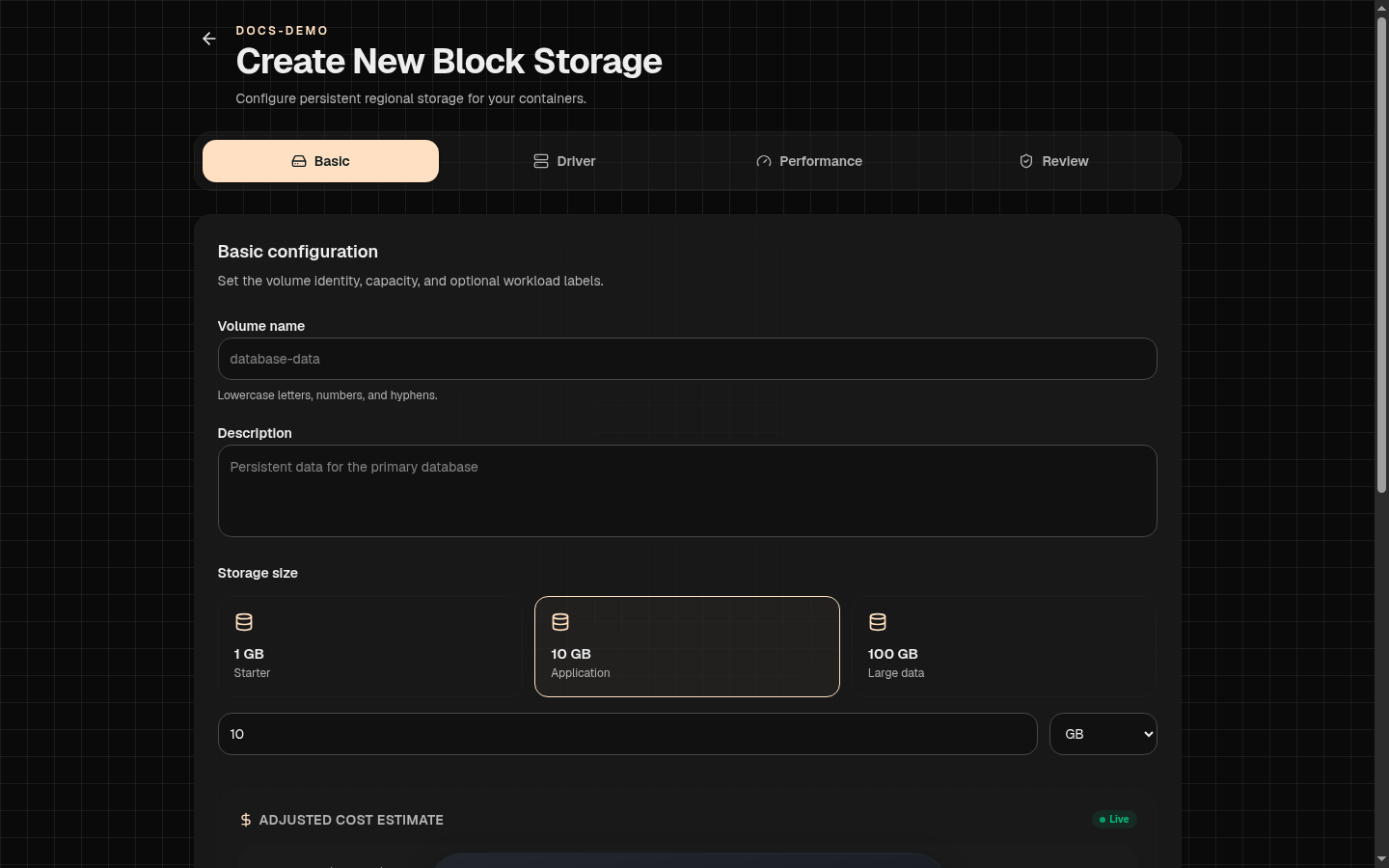
Storage Performance Modes
Select a performance mode during volume creation to optimize I/O characteristics:
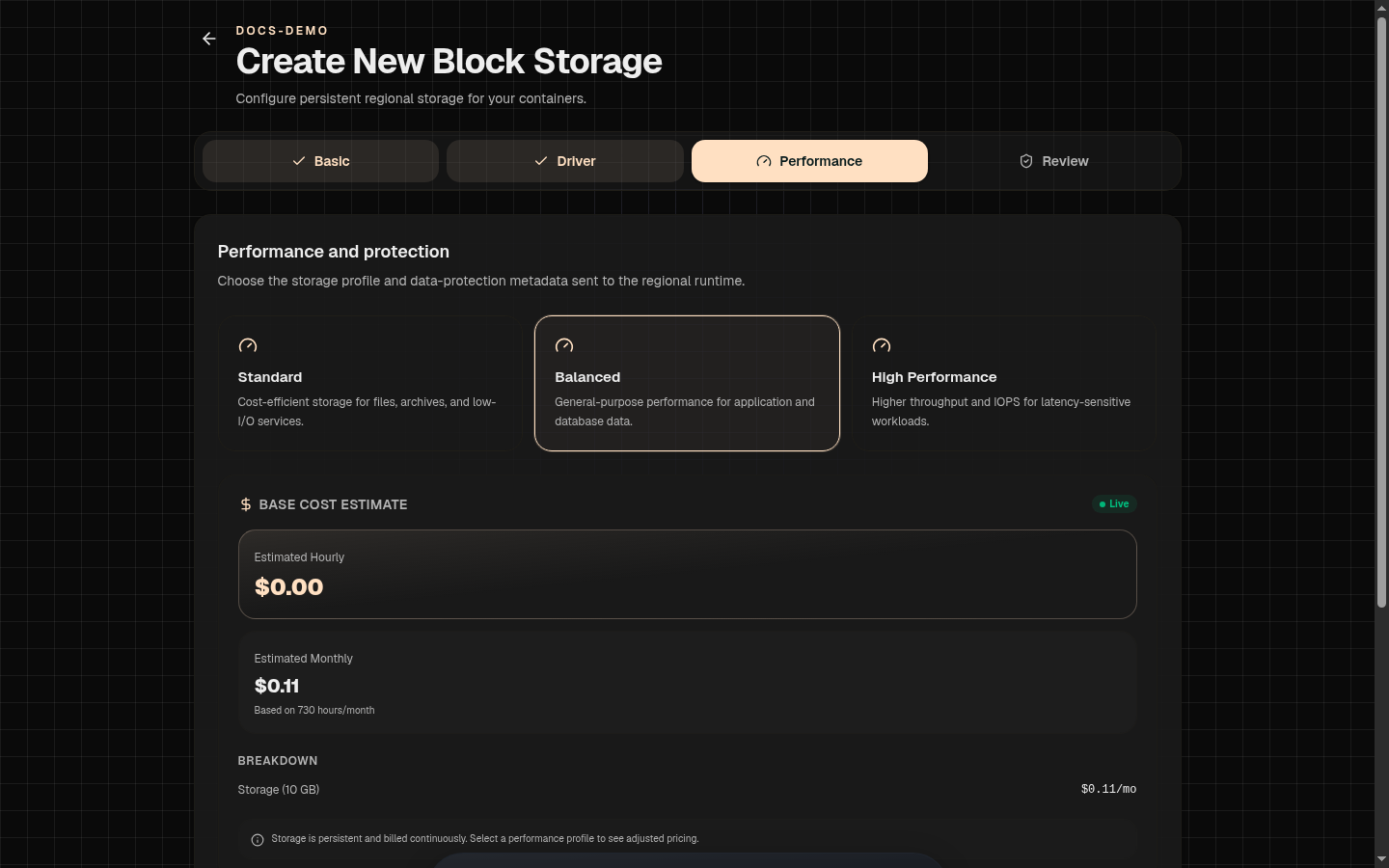
| Performance Mode | I/O Profile | Best Workloads | Price Multiplier |
|---|---|---|---|
| Standard | General persistent storage for steady sequential/random reads & writes. | Application upload folders, user avatars, basic file storage, configuration. | 1.0x Base Price |
| Balanced | Optimized for large-file sequential throughput. | MinIO object storage, media libraries, video processing, backups, datasets. | 1.5x Base Price |
| High Performance | Optimized for low-latency small random reads/writes and high IOPS. | PostgreSQL, MySQL, SQLite, Redis persistence, search indexes, queue brokers. | 2.0x Base Price |
Creating & Mounting A Volume
1Create Volume
From the project overview, open the Create menu and choose Create Volume, enter a name (e.g. postgres-data), set size in GB, and pick a performance mode.
2Mount To Container
In container settings under Storage Mounts, select the volume and set the container target path (e.g. /var/lib/postgresql/data).
Web File Browser Access
The volume details page features an interactive File Browser session. This lets developers browse, upload, download, edit, or recover files stored inside a persistent volume directly from the dashboard without opening a container terminal session.
Resizing & Volume Transfers
- Scale-Up Resizing: Expand existing volumes live from the volume details page (e.g. 10 GB to 50 GB). Note: Storage volumes cannot be shrunk down.
- Project Transfers: Unmounted volumes can be transferred between projects in the same region without data loss.