
Deploy From Git
Hubfly space provides a direct Git deployment flow built for both public/private GitHub repositories and self-hosted Git platforms (GitLab, Bitbucket, Gitea, Forgejo).
What The Git Flow Supports
- GitHub repository picker and manual repository URL entry
- Branch loading and branch search
- Root directory selection for monorepos (e.g.
apps/web) - Redeploy webhook triggers:
Deploy on pushorDeploy on CI success - Automatic stack detection (Node.js, Python, Go, Rust, Ruby, PHP, Java) or explicit Dockerfile builds
- Manual build configuration (install commands, build commands, startup commands)
- Environment variable scoping (
build,runtime, orboth)
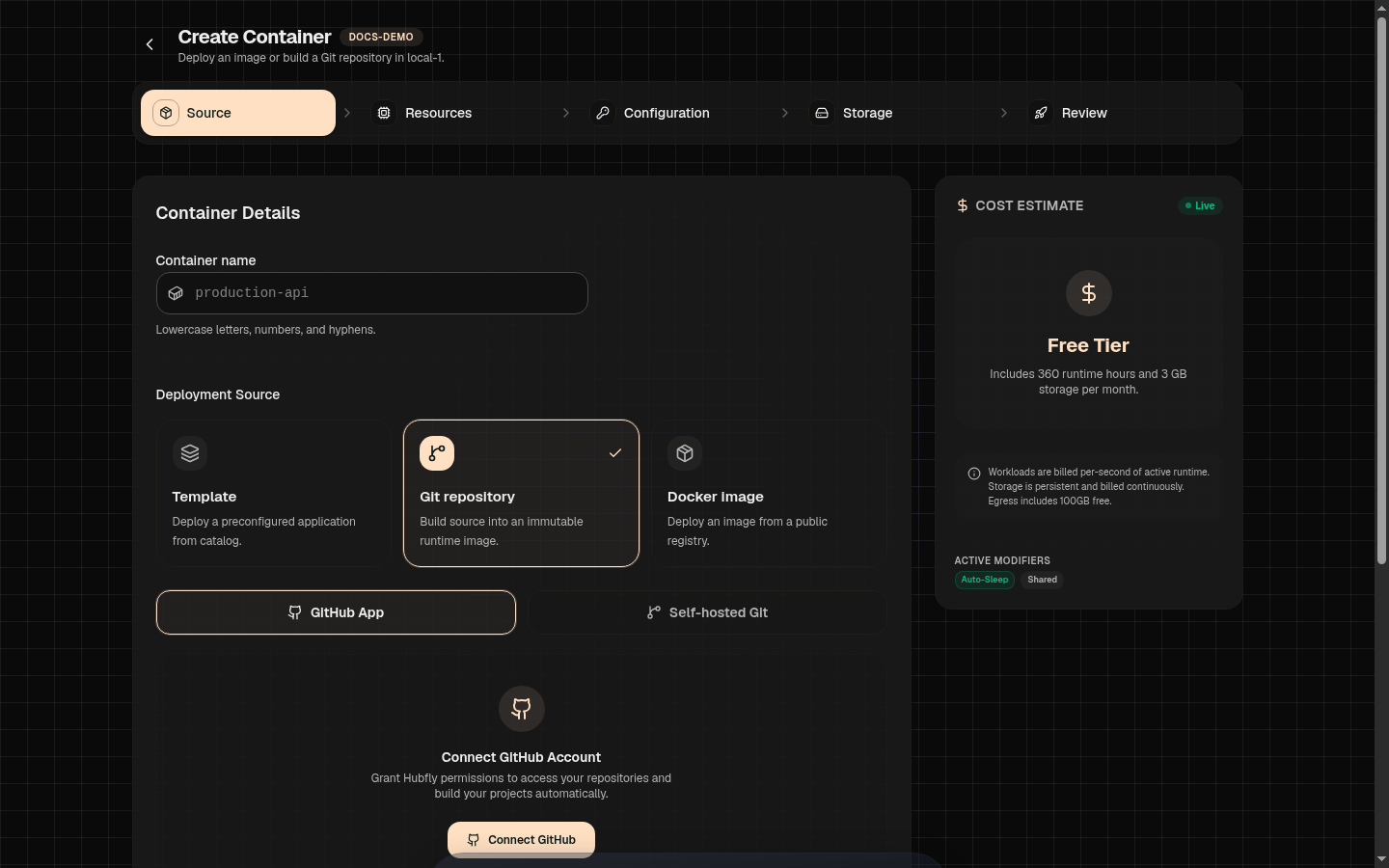
Step-by-Step Git Deployment
1Open New Container Flow
Go to your project workspace and click New Container, then choose the Git Repository tab.
2Select Provider & Repository
Select GitHub or Self-hosted. Select from your GitHub repository dropdown or enter the repository path (e.g. owner/repo or https://github.com/owner/repo).
3Branch & Root Directory
Select the target branch (e.g. main). If your app code lives in a monorepo subfolder, specify the Root Directory (e.g. packages/api).
4Connect & Validate
Click Connect Repository. Hubfly space validates repository read access before letting you proceed to build settings.
Redeploy Triggers
You can choose how future commits on your branch trigger automatic redeployments:
- Deploy on Push: Immediately queues a build as soon as code is pushed to the branch. Best for staging and fast iteration.
- Deploy on CI Success: Holds deployment until your CI pipeline (GitHub Actions, GitLab CI) passes successfully on that commit. Best for production stability.
Build Modes
Automatic Build Mode
Automatic mode checks if a Dockerfile exists at the root directory. If present, it builds using Docker. If no Dockerfile exists, Hubfly space Builder analyzes package files (e.g., package.json, requirements.txt, go.mod) and detects the appropriate builder runtime.
Manual Build Mode
If auto-detection is not sufficient, switch to Manual Build mode to specify exact lifecycle commands:
- Runtime Environment: Node.js, Bun, Python, Go, Java, PHP, Rust, Ruby, or Static HTML
- Version: Pin runtime version (e.g., Node 20, Python 3.11)
- Install Command: e.g.
npm ciorpip install -r requirements.txt - Build Command: e.g.
npm run build - Run Command: Required for manual mode, e.g.
node dist/index.jsorgunicorn app:app
Under The Hood